How to Connect Your Streamline Account
Streamline VRS is a property management system for vacation rentals. Our integration enables Streamline customers to connect their account and automatically sync their properties and upcoming reservations into Porter.
Benefits of the Streamline Integration
- Automatic Property Sync: Import your units, including address and images, as Locations
- Wi-Fi Details: If you store a Wi-Fi name and key in Streamline, they are synced for each unit
- Upcoming Reservations: Booked and modified reservations arriving within the next 30 days are synced along with guest info, so pre-arrival links can be matched to each stay
- Daily Sync: Your properties and reservations are refreshed automatically every day
- Flexible Property Sync: Choose which Streamline properties to sync
Step-by-Step Setup Instructions
Part 1: Generate Your Tokens in Streamline
1. Log In to Streamline
- Log in to your Streamline account at admin.streamlinevrs.com
2. Open Self Service Onboarding
- From the Main Menu, go to Third Party Integrations
- Click Self Service Onboarding
3. Get Your Tokens
- In the list, find Ten One Design and click its "Get Tokens" link
- Copy the Token Key and the Token Secret
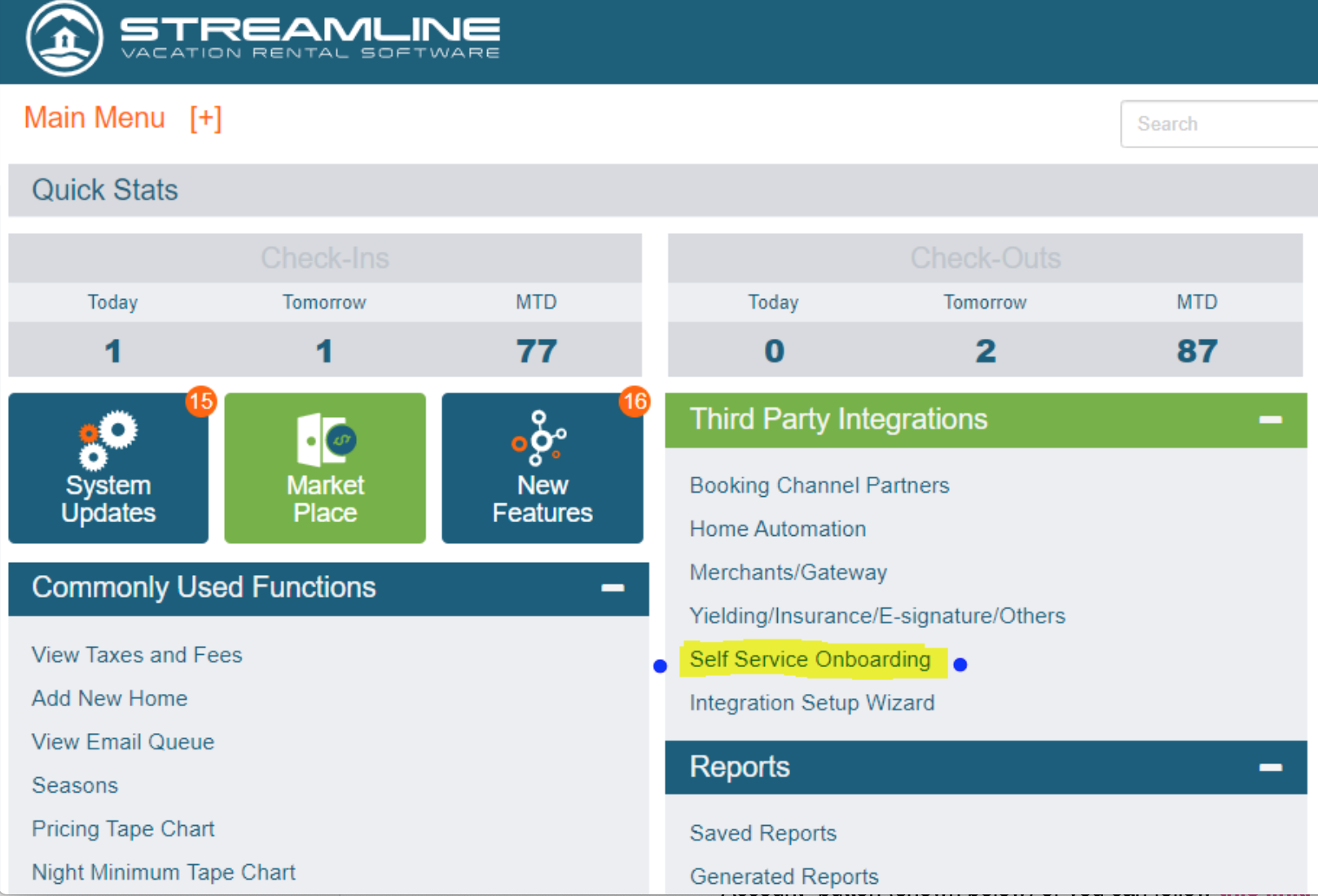
Screenshot: Streamline's Main Menu, with Self Service Onboarding under Third Party Integrations
Part 2: Connect to Your Porter Dashboard
1. Access Integration Settings
- Navigate to your Porter Dashboard
- Select Account from the main menu
- Click on Integrations
2. Add the Streamline Integration
- Add a new integration under the Property Management section
- Select Streamline
3. Enter Your Tokens
- Expand Connection configuration
- Paste in your Token Key and Token Secret from Streamline
4. Connect to Streamline
- Click "Connect to Streamline"
- Click Test to verify the connection
- Wait for the initial sync to complete
Part 3: Choose Which Properties to Sync
The "Property sync" section of the integration controls which Streamline properties are synced into Porter.
- Open the Property sync section
- Choose which properties to include (by default, all properties are included)
- Click Sync to apply your selection
Part 4: Add Your Pre-Arrival Link to Streamline Emails
Pre-arrival links let each guest open a personalized page for their stay. To use them, add your permanent pre-arrival link to the email or message Streamline sends before check-in. See Take Advantage of Pre-Arrival Links for more about how they work.
1. Copy Your Permanent Pre-Arrival Link
- In the Porter Dashboard, open the Location and go to Porters & Links
- Copy the permanent pre-arrival link. With the Streamline integration, it includes the token {reservations.id} where the reservation goes
2. Add the Link to Your Streamline Email
- Open the Streamline email or message you send before check-in, and paste in the link
- Make sure the reservation part of the link is filled in with the reservation's ID when the message is sent
What Happens After Setup
✅ Automatic Daily Sync
Once connected, Porter syncs with Streamline every day:
- Property information is refreshed automatically
- Booked and modified reservations arriving within 30 days are imported
- Changes are reflected in your Porter Dashboard
✅ Tokens Renew Automatically
Streamline tokens expire periodically. Porter renews them for you during the daily sync, so there's nothing you need to do. If the connection ever fails, generate new tokens from the same Streamline screen (Third Party Integrations > Self Service Onboarding) and enter them again in the integration.
Troubleshooting Tips
| Issue | Solution |
|---|---|
| Connection Failed | Double-check that your Token Key and Token Secret were copied exactly, with no extra spaces |
| Connection Stopped Working | Generate new tokens from Third Party Integrations > Self Service Onboarding in Streamline, then enter them again in the integration |
| Sync Issues | If data isn't appearing, try using the Test or Sync buttons in the integration |
| Missing Properties | Confirm the property is included in your Property sync selection, then click Sync |
| Missing Reservations | Only booked and modified reservations arriving within the next 30 days are synced, and they update once a day. Use the Sync button to refresh right away |
| Wi-Fi Details Missing | Wi-Fi name and key are only synced if they are stored in Streamline for the unit |
Need Additional Help?
If you encounter any issues during setup or have questions about the Streamline integration, please contact our support team (info@tenonedesign.com) with details about your specific situation.
Was this article helpful?
That’s Great!
Thank you for your feedback
Sorry! We couldn't be helpful
Thank you for your feedback
Feedback sent
We appreciate your effort and will try to fix the article