How to Connect Your HubSpot Account
HubSpot is a comprehensive customer relationship management (CRM) platform that helps you manage and nurture customer relationships. Our integration enables you to automatically sync guest contact information collected through your Wi-Fi portals and forms directly into HubSpot, streamlining your guest data management and marketing efforts.
Benefits of the HubSpot Integration
- Automatic Contact Creation: Guest information is automatically added to your HubSpot contacts
- Custom Property Tracking: Detailed property metadata helps you organize and segment contacts
- Reservation Matching: Links guest data with specific reservations when available
- Marketing Ready: Seamlessly integrates with HubSpot's marketing tools for targeted campaigns
- Real-time Sync: Contact information is sent immediately when guests complete forms
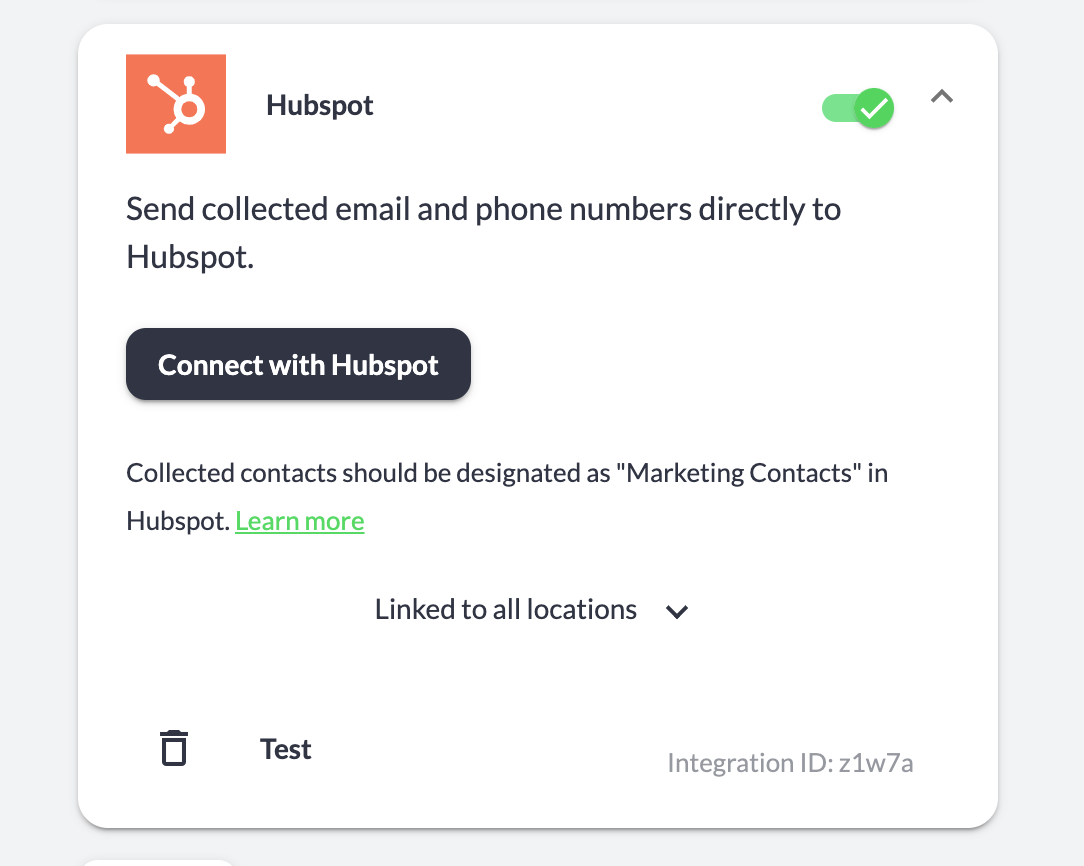
Screenshot: Example of the HubSpot integration in Porter Dashboard
Step-by-Step Setup Instructions
1. Access Integration Settings
- Navigate to your Porter Dashboard
- Select Account from the main menu
- Click on Integrations
2. Add HubSpot Integration
- Under the CRM section, find HubSpot
- Click the Add button to create a new integration entry
3. Connect to HubSpot
- Open the newly created integration
- Click Connect with HubSpot
- Sign in with your HubSpot account credentials when prompted
- Grant the necessary permissions to allow contact creation and property management
4. Test the Connection
- Click the Test button to send a sample contact to HubSpot
- Wait for the test to complete
- Check your HubSpot contacts for a new contact named "Jane Doe" with email test@example.com
Success Indicator: If the test is successful, you'll see the "Jane Doe" test contact appear in your HubSpot contacts list. This confirms the integration is working properly.
Understanding Custom Properties
Our integration automatically sends the following custom properties to HubSpot to help you organize and segment your contacts:
| Property Name | Description |
|---|---|
| PHN Account ID | Unique identifier for your Porter account |
| PHN Account Name | Name of your Porter account |
| PHN Integration ID | Specific integration instance identifier |
| PHN Location ID | Unique identifier for the specific property location |
| PHN Location Name | Name of the property location where contact was collected |
| PHN Porter ID | ID of Porter where the contact was collected |
| PHN Porter Name | Name of Porter where the contact was collected |
| PHN Reservation ID | Linked reservation identifier (when available)* |
| PHN External Reservation ID | Reservation ID from external PMS integration (when available)* |
Note: The PHN Reservation IDs are only sent when your account is synced with a Property Management System and the data collection event can be matched with a specific reservation.
Viewing Custom Properties
- Open any contact in HubSpot that was created through Porter
- Click the Actions dropdown
- Select "View all properties"
- Look for the "Porter Hospitality Network" property group
Setting Up Marketing Contacts
If you plan to use HubSpot's marketing tools with contacts from Porter, you need to enable marketing contact functionality:
1. Access Marketing Contact Settings
- In HubSpot, navigate to Settings
- Go to Integrations > Marketing Contacts
2. Enable Porter Integration
- Find "Porter Hospitality Network" in the integrations list
- Toggle the switch ON to enable marketing contacts for Porter
Additional Resource: For detailed instructions on managing marketing contacts, visit HubSpot's guide: https://knowledge.hubspot.com/integrations/manage-marketing-contacts-settings-for-your-integrations
What Happens After Setup
✅ Automatic Contact Creation
Once connected, contacts are automatically created in HubSpot when:
- Guests complete Wi-Fi portal sign-in forms
- Visitors fill out information collection forms
- Any data collection event occurs in your Porter system
✅ Contact Organization
- All Porter-generated contacts include custom properties for easy segmentation
- Properties are grouped under "Porter Hospitality Network" for easy identification
- Location-specific data helps you create targeted marketing campaigns
✅ Marketing Integration
- Contacts are ready for HubSpot's marketing workflows and campaigns
- Use custom properties to create smart lists and targeted segments
- Reservation matching enables personalized guest communications
Troubleshooting Tips
| Issue | Solution |
|---|---|
| Test Contact Not Appearing | Check your HubSpot permissions and ensure the integration has contact creation access |
| Custom Properties Missing | Use "View all properties" in HubSpot contact details and look for the "Porter Hospitality Network" group |
| Marketing Contacts Not Working | Verify that Porter Hospitality Network is enabled in HubSpot's Marketing Contacts settings |
| Connection Failed | Try disconnecting and reconnecting the integration, ensuring you grant all requested permissions |
Need Additional Help?
If you encounter any issues during setup or have questions about the HubSpot integration, please contact our support team (info@tenonedesign.com) with details about your specific situation and HubSpot configuration.
Was this article helpful?
That’s Great!
Thank you for your feedback
Sorry! We couldn't be helpful
Thank you for your feedback
Feedback sent
We appreciate your effort and will try to fix the article