Choosing a Setup Mode
Every Wifi Porter and Porter Hospitality device can be set up one of two ways. You'll be asked to choose when you tap "Get Started" in the Porter Setup app and scan a new device for the first time.
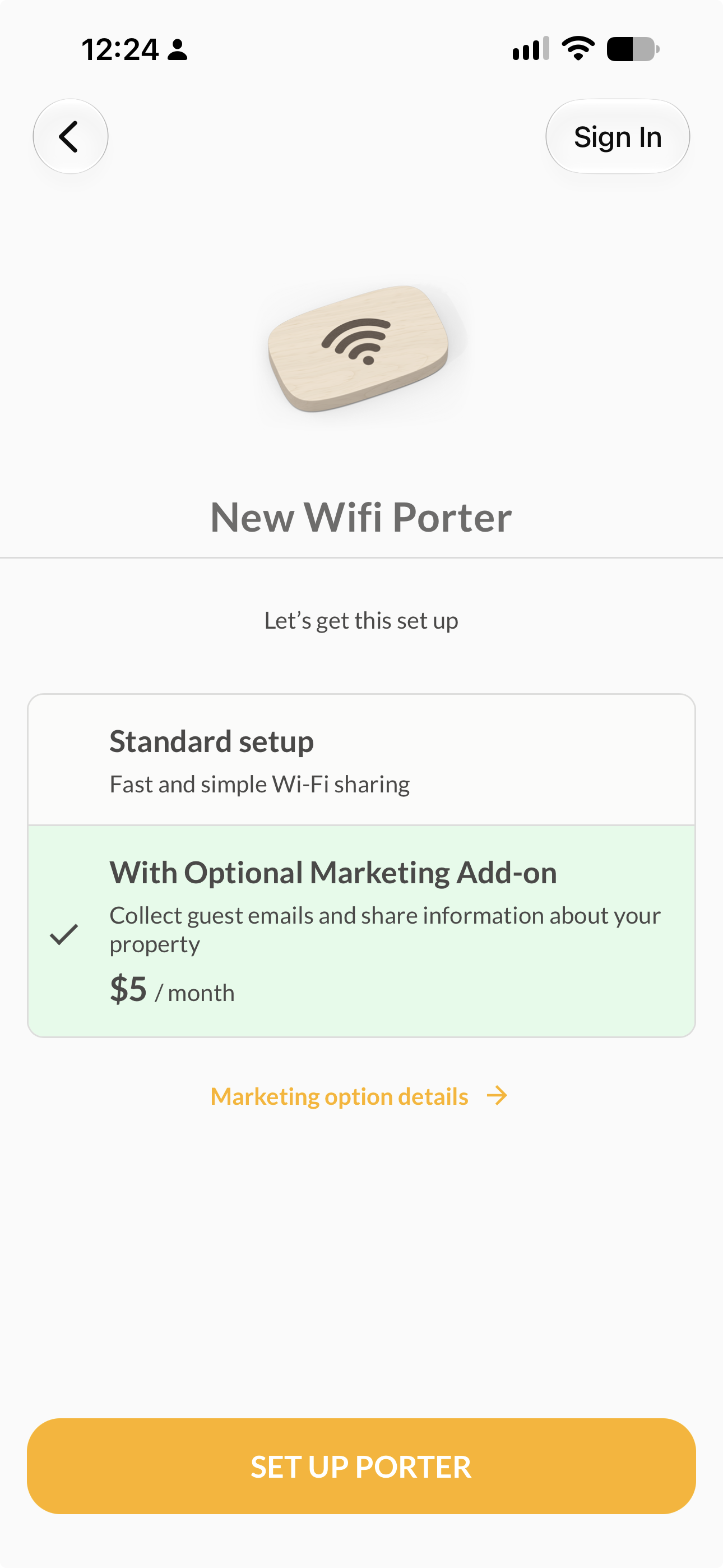
Screenshot: Choosing a setup mode when adding a new Porter
Standard Setup (Local Mode)
Your Wi-Fi credentials are written directly onto the Porter itself. When a guest scans the QR code or taps their phone to the device, the network name and password are handed straight to their phone's operating system and a connection is made immediately.
- Fastest option to set up — no account required
- No branded landing page, AI Concierge, or guest email collection
- If your Wi-Fi password changes, each Porter must be reprogrammed individually with the new password — the app has to talk to the device again
- Best choice if you're only using a PHN Captive Portal for the branded experience and just need the Porter to hand off Wi-Fi credentials
Cloud-Managed Setup
Your Porter will link to a micro landing page hosted in your PHN account. Wi-Fi credentials, branding, and data collection features are all managed remotely from the Porter Setup app or the portersetup.com dashboard — no need to touch the physical device again.
- Share your Wi-Fi info securely, without exposing the raw password on a printed card
- Add a branded landing page, an AI Concierge, and collect guest emails (see Do You Need a PHN Portal?)
- A major feature of cloud-managed setup is that you can collect data before showing Wi-Fi credentials. This is an easy way to start collecting guest email addresses, but it can be less comprehensive than collecting with a PHN Portal
- Update your Wi-Fi password, branding, or messaging any time from the dashboard — no reprogramming the physical device
- Requires a free (or paid, for marketing features) PHN account
⚠️ You can't mix the two after the fact without resetting. If you start in local mode and later want cloud features, you'll need to factory reset the Porter and set it up again in cloud mode.
How to Tell Which Mode a Porter Is Already In
Open the Porter Setup app and scan the device (or select it from Devices in the app menu). The screen title tells you what you're looking at:
| What You See | What It Means |
|---|---|
| "Wifi Porter (local mode)" or "Porter Hospitality (local mode)" | Set up in local mode |
| The Porter's assigned name (e.g. "Front Desk") | Set up in cloud mode, linked to a Location |
| "New Wifi Porter" / "New Porter Hospitality" | Not yet configured |
Next Steps
- Do You Need a PHN Portal? — figure out if you also need a Portal device for a branded splash page or email capture
- Setting Up Your Wifi Porter in Local Mode
- Setting Up Your Wifi Porter in Cloud Mode
Need Additional Help?
If you're still not sure which mode is right for you, contact our support team (info@tenonedesign.com) with details about your setup.
Was this article helpful?
That’s Great!
Thank you for your feedback
Sorry! We couldn't be helpful
Thank you for your feedback
Feedback sent
We appreciate your effort and will try to fix the article