PHN Portal Overview
A PHN Portal is a separate piece of hardware from your Wifi Porter. It plugs into your router with Ethernet and runs a branded Wi-Fi splash page — the screen a guest sees in a browser before they're connected, similar to hotel or airport Wi-Fi. It's what makes guest email collection possible.
⚠️ A PHN Portal is not required to share Wi-Fi with guests. Your Wifi Porter or Porter Hospitality device handles that on its own, in either local or cloud mode.
Two Ways to Collect Guest Data
Note that there are two ways to collect data on our platform.
One is with your Porter in cloud mode. This lets you show a branded page when guests tap or scan it, collect email addresses, and display Wi-Fi credentials, allowing guests to join your network without typing the password. Data collection can be less comprehensive than a PHN Portal, since guests might obtain your Wi-Fi password from other places, like an Airbnb app or a welcome book, and then join without sharing their information.
The other is with a PHN Portal, which lets you collect from everyone who stays at the property. It displays a splash page when personal devices like laptops and phones join the Wi-Fi. All other devices — like Kindles, game consoles, baby monitors, and IoT devices — join normally without any extra steps. By collecting from every guest, not just the person who booked the trip, you can expand your marketing potential and direct booking rate.
You Probably Don't Need One If...
- You just want guests to join Wi-Fi quickly by scanning a QR code or tapping their phone
- You don't need a branded landing page or to collect guest contact information
You Need One If...
- You want guests to see a branded Wi-Fi splash page (your logo, colors, and a welcome message) before they connect
- You want to collect guest email addresses when they join Wi-Fi
- You want to see live status and connected clients for a location from your dashboard
How It Connects
A PHN Portal is set up independently of your Porter — plug it in, and scan the QR code on the bottom of the device to link it to a Location in your account. See Connecting Your PHN Portal for the First Time for the full walkthrough.
How They Work Together
If you've decided to use a PHN Portal for collecting data, we recommend setting up your Wifi Porter or Porter Hospitality in Local mode. This makes it slightly faster for guests to get onto your network to view the splash page.
It's also fine to set up your Porter in Cloud mode so guests will see more property branding and be able to see other information about the property before joining Wi-Fi.
Our licensing is set up so that a PHN Portal and a Cloud mode Porter at the same property only consume one license.
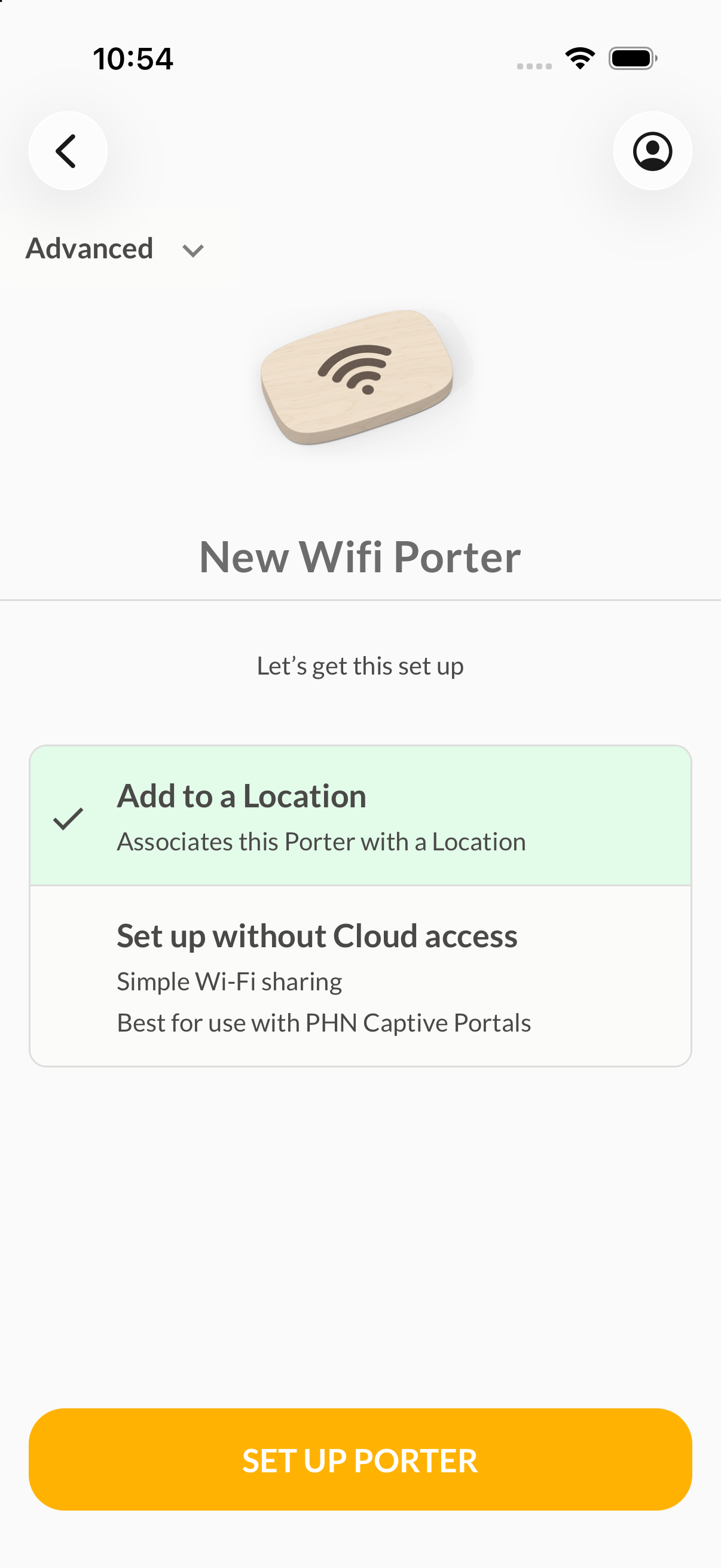
Screenshot: The "Best for use with PHN Captive Portals" note shown during Porter setup
Next Steps
- Local or Cloud: Choosing How to Set Up Your Wifi Porter
- Connecting Your PHN Portal for the First Time
Need Additional Help?
If you're not sure whether a PHN Portal fits your setup, contact our support team (info@tenonedesign.com) with details about what you're trying to do.
Was this article helpful?
That’s Great!
Thank you for your feedback
Sorry! We couldn't be helpful
Thank you for your feedback
Feedback sent
We appreciate your effort and will try to fix the article